
How to use the link builder tool

Nate Smith
Web Content Analyst, assigned to the Digital Content Team
Expert in web content, site architecture, analytics and content strategy. If you have any questions about these subjects please contact the Digital Content Team on digitalcontent@hud.ac.uk
This article is part of the Link Tracking Manual. If you'd like to know more about what to do with a tracked link then the Link Tracking Manual is a good place to start.
The link builder tool is a web form that helps you add tracking to a link. This article is a step by step guide showing you how to use the tool.
Before we get started, if you need to request an update to the tool please contact the Web Content Officer in central marketing. Updates you might need include adding a new item to one of the dropdown fields.
This is where to find the tool
The Link Builder tool lives in the tools section of the WebTeam's blog. -> use the Link Builder.
The tool was rebuilt in 2025, if the dropdowns don't include something you would like then please contact the Digital Content Team.
Please keep a record of your own tracked links
You now need to maintain your own list of tracked links so you can then find the results in Google Analytics. Please speak to the DCT if you have any questions about how to do this.
How to use the Link Builder
You should be presented with a page that looks like this:
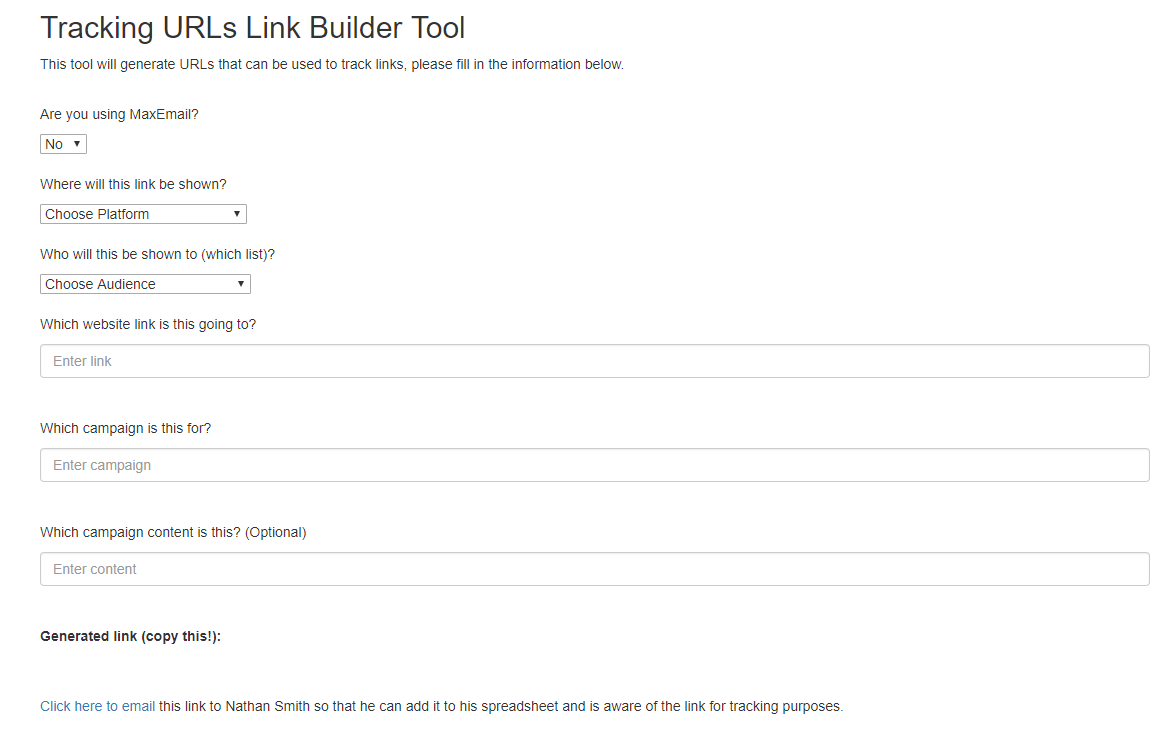
For this guide leave the MaxEmail question to no. If you’re building a link for use in MaxEmail then please see the Email Comms and MaxEmail guides.
The first question asks where will the link be shown. This will fill out the medium field and the answers can be seen below:

In the next question “Who will this be shown to (which list)?” please select the audience you will be sending to. Some examples include:
| whatuni | |
| studentroom |
Here’s a screenshot showing the dropdown list:

If the audience of your campaign isn’t included in the dropdown then please contact the CRM team in Central Marketing.
Finally, enter your campaign name. For example:
- opendays-june17-whatuni-profile
- clearing17-tsr-email-architect
- studyfair17-20nov-current-int
As mentioned above, campaign names must be unique.
The Link Tool will generate the tracking information at the bottom of the page.
The Campaign Content field is optional. The University mainly uses that field when split testing advertising creative.
What to do with a tracked link
After you’ve created a tracked link it is important that you notify the CRM team in Central Marketing. This is so they can add your tracking into Achiever (our CRM) which in turn will allow you to request a report for your campaign.
Once you have created your tracked link you can then use it in your chosen location. Which might be an ad on a website, or a link in an email etc.
Link Tracking Manual
Return to the Link Tracking Manual.
Next article
Learn how to create and use Short URLs.